

Photo Scanning in Laserfiche


By Kyle Knebel
Consultant Corner – March 2026
Image processing options that can clean up photos and color scans in Laserfiche Scanning
In the Laserfiche Scanning Module, available in the Windows Client or Web Client and Cloud, you can configure Laserfiche to clean-up images from photographs and color document scans. If there is text on these images these techniques will help with text generation via the OCR process in Laserfiche Scanning, making it easy to search across images in Laserfiche.
Let’s take a look!
Launch Laserfiche Scanning from the client:
Choose Standard mode when launching the scanning module, since the image enhancements we need are only in this module and are not in the Basic mode.

Whether using “Universal Capture” to get image files from a computer or if using a physical desktop scanner, the LF Scanning module has processes to enhance color images.

The Color Smoothing image enhancement averages and evens out the background color of an image. It can only be applied to color images. Color smoothing will help optimize the image for processing. It reduces the number of colors used in an image, which creates a cleaner image with a smaller file size. Data recognition processes perform better on a solid background. Color Smoothing also optimizes the image for use with the Color Removal image enhancement.

For example, getting this gradient background to become one smooth color needed a larger adjustment range percentage of 65% to get the image to look like one blended color.


The Color Removal image enhancement converts images or portions of images to black and white format. Several processes, including OmniPage Zone OCR and Smooth, are designed to operate on black and white images, so you will get more accurate results if you use Color Removal before using data extraction processes, or before applying other image enhancements such as Invert.

The color removal process will have no problems when you’ve applied an appropriate amount of color smoothing.
Putting these two image enhancements in the order of 1. Color Smoothing and then 2. Color Removal will provide optimal image quality for an OCR text generation process like OmniPage OCR.

This two-step process can be applied to photos or other color scanned images that have text on them. With these quick cleanup processes, Laserfiche documents will be easily searchable in the repository once the text has been generated by the OmniPage OCR step.
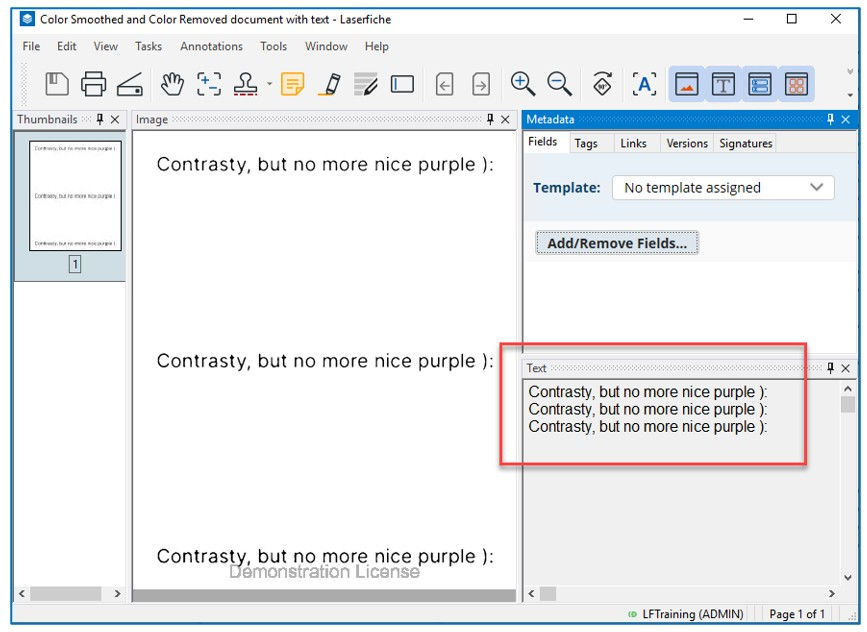
This concludes this month’s review of how to configure Laserfiche Scanning to enhance color images to be ready for OCR Text generation to make them searchable in Laserfiche.
We hope you found it informative and useful!



Comments