

Searching Emails in Laserfiche

Updated: Mar 11
By Kyle Knebel
Consultant Corner – February 2026
Search for emails and learn about customizing your Laserfiche email imports
In both Laserfiche Cloud and Laserfiche On-Premise (Avante/RIO) systems, you can configure Laserfiche to grab the email properties from an imported email and automatically assign the information to template fields. This makes it very easy to search for emails by username, email domain (like yahoo.com), and other email properties. Laserfiche even has a solution to automate email imports from your email server into a Laserfiche repository.
Let’s take a look!
For Laserfiche Cloud:
Configuring default email import settings in the Web Client:
If using Laserfiche Cloud, select your Username at the top-right corner and choose “Options” from the drop-down menu. On the left side panel, select “New Document” on the left, then use the “Email” template as the default for imported email. The “Email” template comes pre-built in your LF Cloud repository.
Here you can configure the mapping of email properties to fields.

As you can see in the image below, the email properties are populated in the fields when an email is manually imported.

For Laserfiche on-premise systems installed on your local server(s):
To configure Email Import properties for on-premise servers, you’ll want to configure two items. One is the email template and email-related fields. The second is the Outlook Import options. If you go to the Laserfiche Administration Console, a Laserfiche system administrator can edit your repository’s Metadata and add a new Template for tracking emails. I usually create one called “Email”, but you can name it something so that your users will understand its purpose by its name.
In the example screenshot below, the “Outlook Emails” template was created. The fields are created and named to match the types of email properties available for automatic recognition. Once you’ve created the template, navigate to the Repository Options>Settings section. Open the Outlook Import properties. Here, you can select the template to be applied along with the field mappings. You can even configure what Laserfiche will do with attachments on imported emails.

Laserfiche Email Archiver (part of Laserfiche Import Agent)
If you don’t want to manually import emails through the Client, you can use the Email Archive utility, which is part of the Laserfiche Import Agent software. Note: Import Agent may be an additional purchase in some cases.
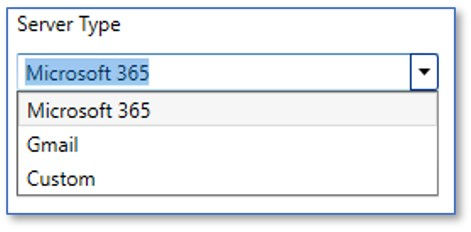
It can be configured to connect to your MS Office 365 email server or older MS Exchange email server (Custom) or Gmail accounts in order to import copies of emails to your repository.
Below is a screenshot from the Profile Wizard in the Email Archiver showing the email Server type choices. As long as you have the proper credentials to authenticate into the defined email server, the software will be able to import the emails you want. You can even set filters or target a specific mailbox or email address from which to retrieve messages.
Below is an image of the Email Archive Profile Wizard where the tempate and fields are being configured to use the Sent Time (included Date) as well as the Recipient’s email address.

Searching for emails:
Using the default Email import settings as mentioned above, I manually imported 6 emails at once via the Laserfiche Client.
In the image below, you can see that Laserfiche applied the template and automatically obtained the properties of the email and inserted them into the fields.
Note: When importing multiple emails at once (called a batch), you can check the “Apply these properties to all entries imported in this batch.” This will dynamically capture the unique values from each different email and apply them to the fields.

Below is an example of some emails imported to a folder in the repository.

Below is an example of a search for all emails where the Sender’s email domain ends in “@laserfiche.com”. Note: I’ve added an asterisk (*) before the email domain so that the search finds any senders from that domain.

To search in the client, we recommend using the Advanced search, where we can then use the template to find emails.
In the example image below, the search is configured to find any emails where the sender email address ends with “@laserfiche.com”. The search has returned one email message that matched.

You can also use Laserfiche’s Advanced Search Syntax to exclude certain results. In the example image below, I’ve created a custom search syntax that excludes a sender email address that has “samantha” in any part of the address.
To do this Advanced Search in the Windows Client, you’ll use the Customize Search drop-down, then:
De-select all search options
Select “Search Syntax” only
Check the box for “Include search syntax in query”. This will enable edit mode in the syntax box. More information on performing advanced search syntax searches can be found here: https://doc.laserfiche.com/laserfiche/en-us/content/search-syntax.htm
Enter the advanced query in the box and test the search. It is helpful to build a search first using the other search options and copy the syntax that is generated (only available in the Windows Client). Then disable the options except for Search Syntax. This usually leaves a syntax that you can then modify.
Check the “Include search syntax in query” box, which enables edit mode.
Modify the syntax as needed.

Here are the results of a search that finds emails from a sender with “@cities” in the address, but the hyphen tells the search engine to exclude values that have “samantha” in that same field. Without the exclusion, there would have been three emails listed instead of the two emails listed. This is but one of many variations to searching with search syntax.
Note: I’ve used the asterisk, which acts as a “wildcard” in two places. See if you can figure out how Laserfiche uses them.

This concludes this month’s review of how to search for emails and customize Laserfiche email imports. We hope you found it informative and useful!



Comments